Pages

Showing posts with label Developer. Show all posts

Saturday, 24 August 2013

Helper class to print the text box content in Windows Store App

Introduction

Microsoft's documentation & sample for printing is too much complex. The sample app for printing shows only how to print RichTextBlock. There's no tutorial to print the TextBox content in Windows Store app. Moreover to print single line of string, one has to write too much code rather than maximum 10 lines in WinForm. So this helper class provides simplest method to print the text box content. It has only one static method. It prints the text box content with its formatting. It's majorly based on MSDN print sample.

I got idea to write a library from the following Stack Overflow questions.

How to print the contents of a TextBox ?

How do you print contents of a RichTextBox ?

How do I print a TextFile OR contents of a TextBox in Metro apps ?

How to use it ?

You have to call just one static method ShowPrintUIAsync of class Printer, it will do print job on your behalf.

await Printer.ShowPrintUIAsync(PrintPreview, MyTextBox, Guid.NewGuid().ToString());

  • PrintPreview is a canvas, which is mandatory to show print preview in device charm. You have to declare in your XAML. 
  • MyTextBox is a text box object, whose text content is going to be printed. 
  • Guid.NewGuid().ToString() is a file name for printing the document. (It will be applied if you are creating PDF or XPS file via printing.)
To install WinRT.TextboxPrintHelper as NuGet package, run the following command in the Package Manager Console.

PM> Install-Package WinRT.TextboxPrintHelper

I would be glad to have issues or suggestions from you, so I can improve this. If you want to fork the repository or post issues, find this helper class on GitHub.

Tuesday, 23 October 2012

Testing in-app puchasing in Windows 8

One of the many new features with upcoming Windows 8 is the Windows Store distribution and monetization channel. Developers can now add in-app purchasing to their apps. The prizes are the same as application prizes in store, e.g. starting from 1,49 USD (1,19 EUR) and gradually growing up in 50 cent increments. Because it seems testing in-app purchasing system isn’t trivial to everybody, here’s a quick sample to get you started. This is only a basic example to get you started, so I don’t cover different in-app types.

Read More

Shortcut Key Handling in Windows Store Apps

I wanted to create a simple ALT+S shortcut in my app to jump to a TextBox in my Windows Store App (no this is not the Win+Q search charm shortcut). However, this is not that obvious to get working app-wide, so I’ll share it here:

The obvious way to do this is assign a KeyDown event to your page using the typical “this.KeyDown += MyKeyDownHandler”, or override OnKeyDown. However this has one problem: If any control that has focus currently handles key down events (like TextBox), this event won’t be raised due to how event bubbling works. However there is another way to create an event handler that overrides the bubbling: UIElement.AddHandler. In the 3rd parameter of that, you can specify that you want to be notified even if the event has been handled.

Read More

How to Test Your Windows 8 App Before Submitting to the Store

How to Test Your Windows 8 App Before Submitting to the Store
It’s always a good idea to test your application before submitting it to the store. The Windows Application Certification Kit (WACK) tool can save you from failing the early automated tests.

The first thing you’ll want to do is uninstall any existing build of your application. This is important because the WACK tool may fail if a previous debug build is still installed on the system. To uninstall your app, find it on the Start experience, right-click and choose ‘Uninstall’.

Read More

Saturday, 20 October 2012

Controlling caching of BitMapImage under WinRT

By default Bitmap Images are cached by WinRT with no intervention required by the developer.  Often times this is a good thing but there are some occasions where this is undesirable.  Although there doesn’t appear to be any obvious control in the API reference I have found that adding a dummy querystring to the BitMapImage source filename reference does the trick and also can offer precise control over the length of caching required (if any) .

Read More

The Windows Store App Lifecycle

The Windows Store App Lifecycle
Windows 8 is changing how and when applications run, and you’ll want to understand the nuances of the new application lifecycle so you can build apps that respond as they should at every point. Apps that conform to the Microsoft lifecycle management guidelines offer a better experience for the user, especially on small devices where memory and battery conservation are warranted.

Read More

Using the MVVM Pattern in Windows 8

Expression Blend for Windows Store Apps with Design-Time Data Using the MVVM Pattern in Windows 8
Any programmer with previous experience in any of the XAML-based frameworks has probably at least heard of the Model-View-ViewModel (MVVM) pattern. Some have been using it extensively in all of their Windows Presentation Foundation (WPF), Silverlight or Windows Phone applications. Others have avoided it, either because they misunderstand what the pattern does, exactly, or because they don’t want to add what they see as a new level of complexity to their application.

Read More
Download the Code Sample

Asynchronous Programming with Async and Await (C# and Visual Basic)


You can avoid performance bottlenecks and enhance the overall responsiveness of your application by using asynchronous programming. However, traditional techniques for writing asynchronous applications can be complicated, making them difficult to write, debug, and maintain.

Visual Studio 2012 introduces a simplified approach, async programming, that leverages asynchronous support in the .NET Framework 4.5 and the Windows Runtime. The compiler does the difficult work that the developer used to do, and your application retains a logical structure that resembles synchronous code. As a result, you get all the advantages of asynchronous programming with a fraction of the effort.

Read More

Tuesday, 16 October 2012

Pizza Ordering Made Easy with Telerik RadControls for Metro - HTML

We all love pizza. I know that I do and several have speculated how it will be ordered in the future. Don’t take my word for it, check out the video above.

While it may seem strange that in the year 2015 people are using Windows 98 to order pizza, it may be more realistic to say they will be using Windows 8 instead. So, let’s build a Windows 8 HTML app using several new controls that are part of Telerik’s Windows 8 UI Controls that we have not seen yet. They include: RadDropDownList, RadSlider and RadGauge.

Read More

Building a custom control using XAML and C#

Building a custom control using XAML and C#You may already know that one of the most powerful features of the Windows 8 XAML platform is the flexibility the platform provides to create custom controls. XAML provides features like Dependency Properties and Control Templates that make it easy to create feature-rich and customizable controls.

Read More

Converting TimeZones in Store/WinRT apps

For anyone who’s tried to convert a DateTime/DateTimeOffset to another time zone in a Windows Store style app, I’ve put together a helper class that uses some of the Win32 APIs that are allowed in Store apps.

In the code below, I’m converting all times to be Eastern time, but it can be easily adapted more generically. I’m calling the Win32 functions that take changes in daylight time into account, so it should be accurate for any supplied date.

Read More

Monday, 15 October 2012

File Manipulation in Windows 8 Store Apps


File Manipulation in Windows 8 Store Apps
The IO Subsystem in WinRT has been written ground up to be completely async.In this article, we see how we can manage (Create and Update) binary data in Files using the Windows 8 runtime.

As we know now, Windows 8 Store Apps are a new category of desktop apps that are touch-centric and run on the new WinRT runtime on Windows 8. In this article, we see how we can manage (Create and Update) binary data in Files using the Windows 8 runtime.

Read More

Windows Runtime Components in a .NET World


The new type of program known as a Windows Store app—optimized to run on Windows 8 devices—has a default view with a full-screen window and no distracting chrome, so the content is the focal point. Windows Store apps support fluid layouts that adapt and scale to a variety of screen sizes and resolutions. They provide a touch-first experience while providing full support for the traditional keyboard and mouse.

Windows Store apps run on a new set of APIs called the Windows Runtime (WinRT). The Windows Runtime exposes components that are built as part of the Windows 8 OS along with third-party components you can develop yourself. Although some core Windows Runtime Components are accessible from desktop apps, third-party Windows Runtime Components are only available from within the Windows 8 environment. WinRT types are described using WinRT metadata files that have the .winmd extension. These files are encoded using the same standard the Microsoft .NET Framework uses for providing metadata definitions and semantics for classes, ECMA-335 (see bit.ly/sLILI).

Read More

Interacting with Windows 8 Maps app using WindowsMapsHelper library


Windows 8 is shipped with preinstalled Maps application. This app provides all basic mapping features such us showing current location, searching for place or local business and calculating driving directions. Even better, Maps app implements bingmaps protocol to allow 3rd party applications to activate these features. There is just one disadvantage of the protocol: it’s basically a URL string and all numerous parameters need to be properly formatted.

WindowsMapsHelper library aims to simplify communications with Maps app. It encapsulates maps protocol into a few strongly typed classes.

Read More
Source code at GitHub
NuGet Package Here

Sunday, 14 October 2012

Walkthrough: Adding Text Translation to your Windows 8 App


Walkthrough: Adding Text Translation to your Windows 8 App
The Microsoft Translator is a powerful service that developers can leverage in their Windows 8 apps. It’s core functions are to detect the language of some text. To translate text from one language to another. And, to read text to you – that’s right! The API is hosted on Azure’s Data Marketplace. It has a pricing schedule, including a free tier that developers can leverage to develop with the API.

Read More

Using User-Provided Images for Secondary Tiles


Often when you are creating a secondary tile in Windows 8, it will be based on images coming from the internet. However a requirement of secondary tile images are that they need to be stored locally. I initially had some problems getting this working right and the streams closed correctly for this to work, so here’s the code for other to use and save the hazzle.

You can download the tile utility class and sample app here.
Read More 

Saturday, 13 October 2012

How to call WinRT APIs in Windows 8 from C# Desktop Applications - WinRT Diagram


How to call WinRT APIs in Windows 8 from C# Desktop Applications - WinRT Diagram
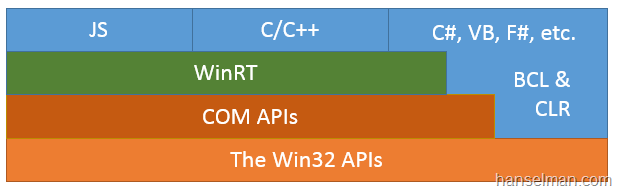
I was trying to access some of the sensors that are built into this Intel Ultrabook that runs Windows 8. However, while there's support for Location Sensors built into the .NET 4 libraries on Windows 7 and up, I want to access the complete Sensor and Location Platform that is built into Windows 8 itself. Those APIs are available via COM and I could call them via COM, but calling them via the WinRT layer is so much nicer. Plus, this is kind of why WinRT exists.

This got me thinking about WinRT and what it means. I did a podcast a few months ago that really cleared things up but I've always found all the various diagrams that attempted to explain how things fit together WAY TO COMPLEX.

Read More

TypeScript for Windows 8 Store Apps


What is TypeScript?
See http://www.typescriptlang.org

TypeScript was recently released and has become the new hot topic.  One of the questions I have asked and heard is can we use this for developing Windows Store Applications with Javascript and have the cool features that have been shown in the videos and examples.

One of the great features was the split window feature where you can code in TypeScript on the left and upon hitting save, it compiles to Javascript on the left. So I fired up a new Javascript Windows Store project in Visual Studio to give it a shot to see if it all works.  Before we get started make sure that you have the following:

  • Windows 8 & VS2012
  • Download the plugin: http://go.microsoft.com/fwlink/?LinkID=266563
  • VS 2012 Web Essentials: http://visualstudiogallery.msdn.microsoft.com/07d54d12-7133-4e15-becb-6f451ea3bea6


Read More

Secondary tiles with text


The call to pin a secondary tile looks like this:

SecondaryTile(string tileId, string shortName, string displayName, string arguments, TileOptions tileOptions, Uri logoReference);

The important part for this post is the last parameter: Uri logoReference. This is the the path to the image you want to show on the tile – but I had a problem, I didn’t want to show an image! I just had some text I wanted to show on the tile. After a lot of digging the solution was non trivial – generate an image at runtime. This was made even harder as the Render method in WPF does not exist in the XAML implementation used in WinRT.

Read More

Tips for Dealing with New and Missing Windows 8 XAML Controls


Although the Windows 8 XAML platform brings back a lot of the controls that exist in WPF and Silverlight, and adds some completely new ones, there are some controls that you might find missing and wonder what to do. In this article we cover a list of some of these controls, along with some suggested ways to cope with their loss.

Calendar
DataGrid
DatePicker
DockPanel
Flyout
GridSplitter
InkCanvas
Menu
MultiScaleImage
NumericUpDown
TabControl/Pivot/Panorama
TreeView
Viewport3D, D3DImage, DrawingSurface
WrapPanel

Read More
Web Informer Button