Pages

Tuesday, 17 July 2012

Launching Windows Store from your Metro style app

Launching Windows Store from your Metro style app


Suppose you wanted to include a page in your new shiny Windows 8 Metro app listing your other apps and when a user taps on an app in the list he/she will be immediately transferred into Windows Store to give you more money (or at least boost your rankings). How do you do that?
In Windows Phone that was really easy. There was a MarketplaceDetailTask class just for that. So you would do something like this:

MarketplaceDetailTask mpTask = new MarketplaceDetailTask();
mpTask.ContentIdentifier = marketplaceAppId;
mpTask.Show();


Done!

But there’s nothing like that in WinRT. As it usually happens with advanced APIs simplicity was sacrificed in the name of flexibility. In Windows 8 any app can register (with user’s permission) as a default app to handle some protocol. So Windows Store is no different. It’s a default app to handle “ms-windows-store” protocol.

Read full article here

How to open Internet Explorer by C# code in a Metro style application

Recently I’ve worked on a Windows 8 application to promote my blog: people can use it to read my posts within the application and to be notified (using both toast and tile notifications) every time a new post is published. The application uses a web view to display the detail of a post: the problem came when I had to manage the snapped view, since there isn’t enough space on screen to display a web view.

During the pre certification lab that I’ve attended in Microsoft Italy the trainer gave me a good tip: in case the application is snapped, the post detail should be opened using Internet Explorer and not inside the application. In fact, in this scenario, Internet Explorer will open in filled mode and the user will be able to read the post without any difficulty.

In a Windows Phone application this behavior is easy to implement, thanks to the WebBrowserTask launcher. How to do the same in a Windows 8 application?

Read full article here

Microsoft Office 2013 - Screenshot Tour

Microsoft Office 2013 - Screenshot Tour

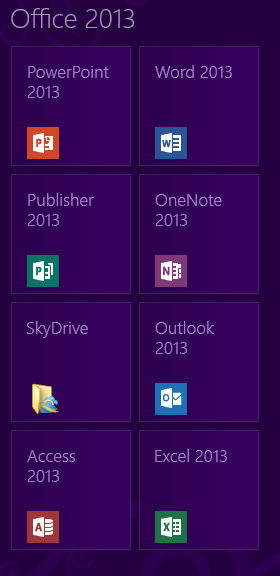
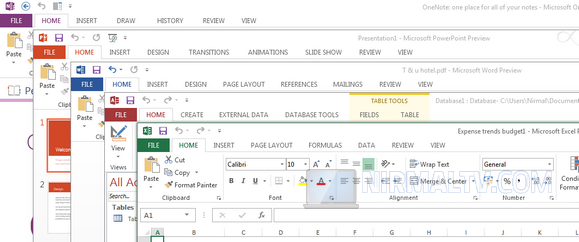
Microsoft has released the first public preview of the latest Office suite, the Office 2013. Office 2013 comes with lots of new changes and features including the UI which now has a metro look along with icons. The ribbon feature available in Office 2010 has been retained but comes with more features. One of the major new feature is the support for in-built PDF editing in Word 2013. You can start download the Office 2013 preview from here.

Here is a screenshot tour of all the apps bundled in Office 2013.

Microsoft Office 2013 - Screenshot Tour


Read full article here

Playing a embedded media file (mp3) in WinRT (not via Xaml but with C#)

When building WinRT applications it is going to be pretty common to want to play some sort of embedded audio file.  It may also be common to want to play this file but via a ViewModel (or simply not in a view).  In this post we are going to take a quick look at how to play an MP3 file by using the MediaElement control, but we will NOT be doing this via XAML, we will be doing via straight up code.  The reason I am not using XAML here is because i don’t want to limit the places or times I can play audio, also I want to trigger the playing of the file via my ViewModel.

Before we get coding lets assume we have an audio file embedded in our application under the /Assests/SoundFiles folder and the file name is ding.mp3

Read full article here
Web Informer Button